How to Find Your Screen Time App (and Why It's the First Step in Conscious Stack Design™)
Learn how to find screen time app settings on iPhone, Mac and Android, then pull your weekly activity and see your top nine most used apps today.
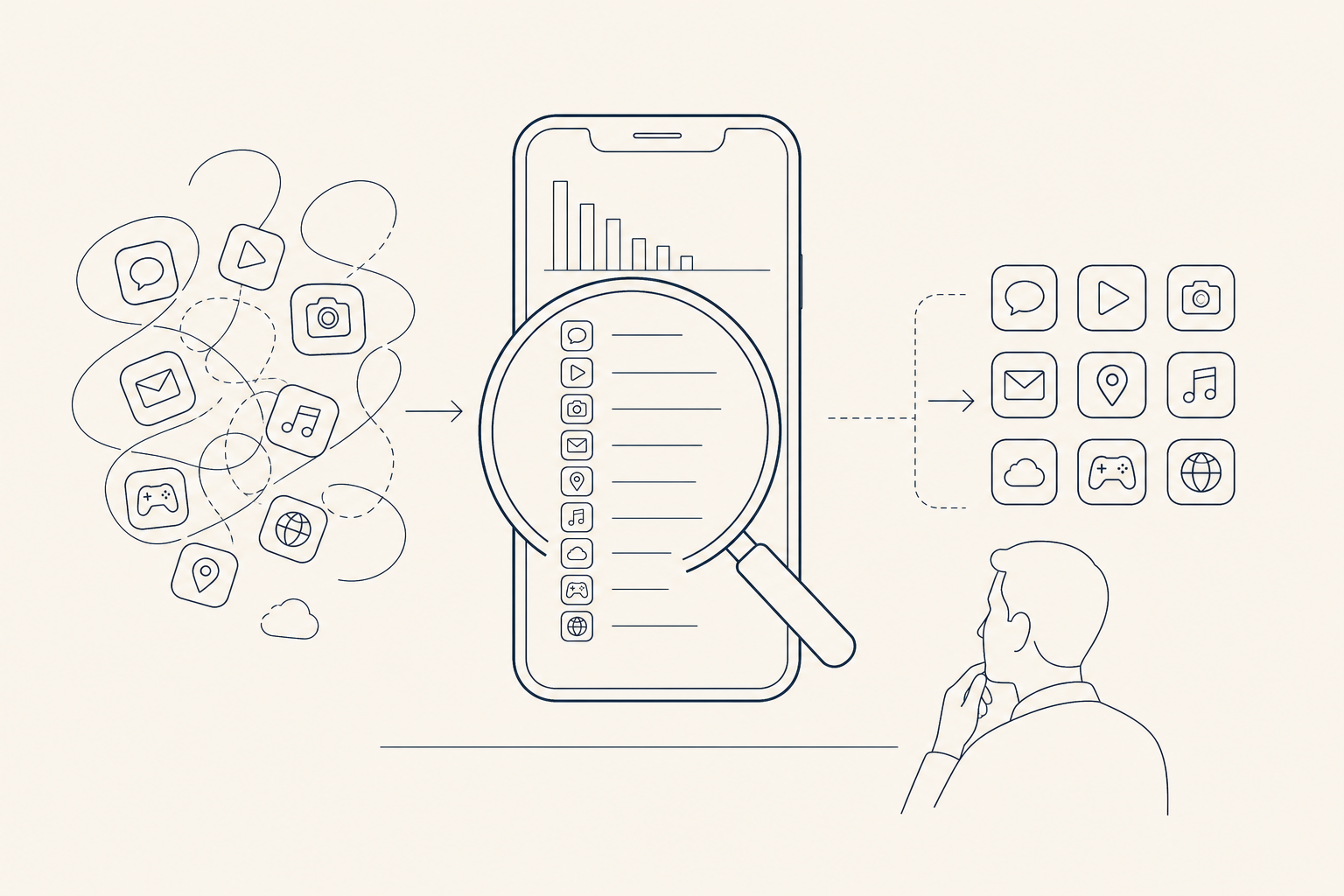
TL;DR: Most of us have no idea where our attention actually goes. This guide shows you how to find your Screen Time app (or Digital Wellbeing on Android), pull up your top nine most-used apps from the past week, and see your own stack clearly for the first time. The real point isn't the numbers. It's the moment the unconscious becomes conscious.
You can't change what you're not aware of.
That sounds obvious until you try it. Ask a few smart, busy people which five apps they used most last week, and watch how often the guess is wrong. The information exists. It's sitting on your phone right now. It just isn't in front of you.
This is a practical how-to: where to find Screen Time, how to read the weekly view, and how to land on the one list that matters. Then I'll explain briefly why this is the first step of Conscious Stack Design™.
Why Start Here
Every stack has layers. Your digital life does too: the apps you open without thinking, the ones you open on purpose, and the ones you forgot you installed.
Most people try to redesign the top layer first. New tools, new systems, new workflows. But you can't design a stack you haven't mapped.
Mapping starts with knowing where your attention goes before you do anything with the tools in your stack. Not judging it. Not fixing it. Just seeing it.
That's the whole job of this first step. Make the unconscious conscious. Surface the hidden information so you can act on it later.
How to Find Screen Time on iPhone and iPad
These steps work on both iPhone and iPad. Menu names can vary slightly between iOS versions, so if something looks different, use the search bar in Settings.
Step 1: Open Settings and tap Screen Time
Open the Settings app and scroll down to Screen Time. Can't spot it? Pull down in Settings and type "Screen Time" into the search field.
One caveat: Screen Time has to be switched on to show data. If you see a prompt to turn it on, do that first. It only records from that point forward, so if it's brand new, give it a few days before the weekly view tells you much.
Step 2: Tap "See All Activity"
At the top of the Screen Time page, you'll see a small chart with your daily average. Tap See All Activity to open the full activity screen.
Step 3: Select "All Devices"
At the top of that screen is a toggle between your current device and All Devices. Choose All Devices.
This matters. Your attention doesn't live on one screen. Including your iPhone, iPad and Mac gives you the real picture, not just the slice from whatever's in your hand.
Step 4: Switch to the Week view
Tap Week to see the last seven days. A single day is noisy. A week shows the pattern.
Step 5: Find the Most Used section
Scroll down to Most Used. This ranks your apps by time spent.
Note your top nine. If the list shows fewer, tap to expand it. Then write those nine down somewhere you can see them. That list is your starting set for consciously designing your own stack.
How to Find Screen Time on Mac
Your Mac keeps track too, and it's worth checking if you work on it daily.
- Open the Apple menu and choose System Settings.
- Click Screen Time in the sidebar.
- Select App & Website Activity.
Screen Time needs to be turned on first, same as on iPhone. Menu names can shift a little between macOS versions, so search "Screen Time" in System Settings if the path looks different.
If you chose All Devices on your iPhone, your Mac activity is already part of the combined picture. This screen is the quick way to see what happens at your desk.
How to Find Screen Time on Android
Android doesn't have an app called "Screen Time." The equivalent is Digital Wellbeing.
- Open Settings.
- Tap Digital Wellbeing & parental controls.
- Open the dashboard to see per-app usage.
On some phones, the Digital Wellbeing icon doesn't appear in your app list by default. If that's your situation, look for a Show icon in the app list option in its settings and switch it on.
Digital Wellbeing may not offer all the detail Apple's Screen Time does. It's close enough for this exercise. You're not auditing a spreadsheet. You just need your top nine apps by time used.
Check per-app usage over the past week, then write down the top nine.
What to Do With Your Top 9 Apps
Here's where most guides tell you to delete things, set limits, or optimize. We're not doing that.
This step is lighter. Look at your nine apps and notice.
- Write them down. Actually write them, on paper or in a note. Seeing the list in your own handwriting is different from glancing at a screen.
- Notice what surprises you. Is there an app in the top nine you'd have sworn wasn't there? Is something missing that you expected to see?
- Notice tools versus habits. Some apps you open because you decided to. Others you open because your thumb got there first. Neither is wrong. Just mark which is which.
That's it. No score. No verdict. A tool you chose and a habit you drifted into can sit side by side on the same list. The point is simply to see the difference.
Think of it as a navigator's first read of the water. You're not changing course yet. You're learning what's actually there.
FAQ
Where is Screen Time on iPhone?
Open Settings and tap Screen Time. If you don't see it, use the search bar at the top of Settings and type "Screen Time." It must be turned on to show activity data.
How do I see Screen Time for the last week?
In Screen Time, tap See All Activity, then choose the Week view. This shows the last seven days. Scroll down to reach the Most Used section.
How do I see Screen Time for all devices?
On the activity screen, select All Devices instead of just the current device. This combines your iPhone, iPad and Mac into one view, as long as Screen Time is enabled on each.
Is there Screen Time for Android?
Android uses Digital Wellbeing instead. Find it under Settings > Digital Wellbeing & parental controls. It may not match Apple's Screen Time in detail, but its dashboard shows per-app usage and works for this exercise.
Why is Screen Time showing no data?
The most common reason is that Screen Time isn't turned on, or was only just turned on. It records only from the moment it's enabled, so give it a few days. If you're checking all devices, make sure it's switched on for each one. Menu names can also differ slightly by iOS or macOS version.
Where This Leads
You now have something most people never do: a plain list of the nine apps that actually take your attention.
Nine isn't arbitrary. It connects to a simple 1:3:5 structure, and that's the bridge to the next step. You've mapped the layers. What comes next is deciding what to do with them.
If you want to see how that works, learn what to do next with your top 9. And if you'd like more of the thinking behind it, you'll find it at georgesiosi.com.
Awareness doesn't fix anything on its own. But nothing gets fixed without it.